Updated November 2026.
Amazon backend keywords are the hidden words you type into the Search Terms field of a listing. Shoppers never see them, but Amazon can use them to match your product to searches that your title and bullets do not cover. Used well, the field adds reach for free. Used badly, it wastes space or gets ignored.
| Quick answer: Find terms in Brand Analytics, Amazon autocomplete, your ads Search Term Report, competitor listings and customer reviews. Keep only terms that are relevant and not already in your title, bullets or description. Write them in lowercase with single spaces, no commas, no competitor brands. In the US, stay under 250 bytes, and aim for about 245 to leave a safety gap. Then test that the terms are indexed. |
Most guides on this topic repeat the same rules and skip the part that matters most: how to decide which words deserve the space. This guide covers both. We compared the rules from several seller guides (Canopy Management, SellerSprite, eStore Factory, Ad Badger, GigaBrands and Nexscope), and where they disagree, we say so instead of picking a side quietly.
What are backend keywords on Amazon?
Backend keywords, backend search terms and generic keywords are three names for the same thing: the Search Terms box in the Keywords section of your listing in Seller Central. Amazon’s own screens may label it Search Terms or Generic Keywords depending on your account and category.
Amazon looks at your visible copy first. The order of importance most sellers work with is title, then bullets, then description, then backend search terms. The backend field is the lowest in that list, so it does not replace good visible copy. It is a place for words that do not fit naturally in front of the shopper.
Think of it like this. Your title says “water bottle”. A shopper types “hydration flask” or “gym cup”. You would never write those in the title, because the title would read badly. The backend field is where those words go.
What are the rules for the Search Terms field?
These rules come up again and again in seller guides and agency audits. Amazon does not spell out every one of them in one place, so treat them as working rules and keep checking the live field in Seller Central.
| Do | Do not |
|---|---|
| Use lowercase words separated by single spaces | Use commas, dashes, quotes or other punctuation |
| Add synonyms, alternate names and common misspellings | Repeat words that are already in your title, bullets or description |
| Add use cases and who the product is for | Use competitor brand names or trademarks |
| Use one form of a word (singular is fine) | List both singular and plural of the same word |
| Keep it under the byte limit | Use claims like “best” or “cheap”, or ASINs and URLs |
How long can the field be?
In the US marketplace, sellers and agencies put the limit at 250 bytes. Canopy Management and SellerSprite both say this, and Canopy adds that Japan is 500 and India is 200. Canopy also notes that Amazon does not publish the number prominently, and that it comes from an Amazon moderator and from audits. So treat it as a reported limit, not a promise.
The unit is bytes, not characters. Plain letters, numbers and spaces cost 1 byte each. Accented letters and non-Latin characters can cost 2 to 4 bytes each. If you add Spanish terms with accents, count carefully.
What happens if you go over?
Sources disagree here. Canopy and Ad Badger say Amazon may ignore the whole field. Another guide says only the extra part is lost. Nobody outside Amazon can prove either one, so the safe move is simple: stay under the limit. Aim for about 245 bytes and you never have to find out.
Do spaces count toward the limit?
Again, guides disagree. Two say spaces count, one says they do not. Count them. If your total is under the limit even with spaces, you are safe either way.
Should you fill every byte?
No. A shorter field of relevant terms beats a full field padded with weak ones. Canopy makes the same point. Extra words that do not match what you sell can bring in clicks that never buy, which hurts your conversion rate.
Do you need to repeat plurals, capital letters or stop words?
No. Amazon handles plurals and capitals, and filler words like “the”, “for” and “with” only waste bytes. Word order does not matter either, because Amazon splits on spaces and matches words in any combination.
How do you find backend keywords for Amazon?
Do not start by brainstorming. Start with data that real shoppers already created. Here are six sources, from the most reliable down.
1. Brand Analytics: Search Query Performance
If your brand is enrolled in Brand Registry, open Brand Analytics in Seller Central and go to the Search Query Performance report. It shows the searches that led to your ASINs, with impressions, clicks, cart adds and purchases, plus your share compared with the total.
What to look for:
- Queries that already bring impressions to your product but do not appear anywhere in your listing text. These are your best backend candidates.
- High impression share but low click share. This points to a listing problem such as your main image, title or rating, not a keyword problem.
- Queries where a competitor takes most of the purchases. Check whether the competitor uses a word you missed.
Two limits to know. Low-volume queries are hidden, and the ASIN-level data needs Brand Registry. If you are not enrolled yet, use the other five sources below.
2. Amazon search bar autocomplete
Type your main keyword into the Amazon search bar and read the suggestions. Then add a letter, one by one: “water bottle a”, “water bottle b”, and so on. Each suggestion is something real shoppers type. Note the ones that add a use, size, material or audience, such as “for gym”, “for kids” or “with straw”.
3. Your ads Search Term Report
If you run Sponsored Products, your search term report shows what shoppers typed before they bought. Filter for terms with orders that are not in your listing. Add the good ones to the backend. Add the bad ones as negatives in your campaigns. Our Amazon PPC management team starts every account audit with this report, because the data is yours and it is free.
4. Competitor listings
Open the top 5 listings for your main keyword. Read their titles and bullets for words you have not thought of. Tools like Helium 10 Cerebro or Data Dive can show which keywords a competitor ranks for, and you can compare that list with your own. Use competitor listings for ideas only. Do not copy their brand names.
5. Customer reviews and Q&A
Read the reviews of your own product and of the top three rivals. Look for how people describe the product in their own words. A buyer might write “gym jug” when your listing says “sports bottle”. Read the Q&A section too. Questions show what people are unsure about, and those words often match what they type in search.
6. Spelling and regional variations
Think about common misspellings, US and UK spellings, abbreviations and, if your buyers use them, Spanish terms. Pull misspellings from your search term report rather than guessing. Do not add a misspelling just because it looks possible. Add it only if shoppers actually use it.
How do you decide which terms go in the backend?
You will end up with a long list. Cut it with four checks. A term stays only if it passes all four.
- Relevant. Does it describe exactly what you sell? If a shopper clicked, would they be happy with your product?
- New. Is the word missing from your title, bullets and description? Amazon indexes a word once, so repeating it adds nothing.
- Allowed. It is not a competitor brand, a claim like “best seller”, or a banned or restricted term.
- Worth the bytes. Does it have real demand, or at least real use in your reviews or ads data? Drop weak terms first when you are close to the limit.
Then put your list in a plain text file, remove the repeats, remove stop words, lowercase everything, and count the bytes. A free byte counter or a simple script does the job in seconds.
What does a finished backend field look like?
Here is an example for a made-up product. It is only an illustration, not a list to copy.
| Part | Text |
|---|---|
| Title | Stainless Steel Water Bottle 32 oz, Insulated, Leak Proof Lid |
| Search Terms field | hydration flask thermos tumbler gym sports travel cup vacuum cold hot drinks hiking camping gift bpa free dishwasher safe kids school office |
| Size | 140 bytes, well under 250 |
Notice what is missing. The words “stainless”, “steel”, “water”, “bottle”, “insulated”, “leak” and “proof” are already in the title, so none of them appear again. There are no commas, no brand names and no plurals. The field is not full, and that is fine. There is room to add new terms later when your data shows them.
How do you check that your terms are indexed?
Saving the field does not prove Amazon is using it. Use these checks.
- Wait 24 to 72 hours after the update. Large catalogs and new listings can take up to a week.
- Open Amazon in a logged-out or incognito window.
- Type your ASIN, a space, then the exact term, in lowercase and without quotes.
- If your product appears, the term is indexed. If you get no results, or Amazon shows a “similar search”, it is probably not indexed.
Test three or four terms after each edit, and include one term you already know is indexed as a control. If the control fails too, your test is wrong, not your listing.
Keep in mind that indexed does not mean ranked. Indexing means your product can be found for that term. Ranking depends on sales history, price, reviews, conversion rate and more. If a term is indexed but you never appear on page one, the next step is better conversion and ads, not more keywords. Our guide to Amazon PPC strategy shows how ads help new terms build sales history.
Brand Registry sellers have a second check. Look at the Search Query Performance report a week later. If a term has impressions, it is working. If it shows zero impressions week after week, it is either not indexed or buried too deep to matter.
What mistakes waste the Search Terms field?
- Repeating the title. This is the most common one. It uses up bytes and adds no extra reach.
- Stuffing unrelated high-volume words. A popular word that does not describe your product brings clicks that do not convert.
- Using competitor names. This breaks Amazon’s rules and can get a listing suppressed.
- Going over the limit. Some sources say the whole field can be ignored.
- Leaving old terms. Seasonal words and discontinued variations stay in the field long after they stop helping.
- Forgetting variations. Child ASINs in a variation family may need their own check. See our notes on Amazon catalog management if your catalog has many variations.
- Using the backend to fix a weak front end. If your title and bullets are thin, no hidden words will save them.
Do backend keywords still matter with Rufus and AI search?
Amazon now has an AI shopping assistant called Rufus, and shoppers ask it full questions instead of short keywords. Amazon has not said how backend terms feed into it, so be careful with any article that claims to know. Canopy Management says use-case and problem terms, like “sweatproof” or “small ears” for earbuds, help in the backend field. That is a reasonable idea, but the claim is not documented by Amazon.
What we can say with confidence: clear, natural language in your title, bullets and images matters more than ever, and the backend field is a small helper on top. Write your visible copy so it answers real questions first, then use the backend for the leftover words. Our post on how AI search finds Amazon listings covers the visible-copy side in more detail.
How often should you update backend keywords?
Sources suggest anywhere from monthly to quarterly. A simple routine works well:
- Check the Search Query Performance and search term reports once a month.
- Change only a few terms at a time, so you can see what moved.
- Keep a log with the date, what you added, what you removed and the result.
- Do a full review every quarter, and before big seasons.
Changing everything at once makes it impossible to know what worked. Small edits and a written log solve that.
If you want an expert to do the full listing, not just the hidden field, look at our listing optimization service and our page on Amazon listing SEO.
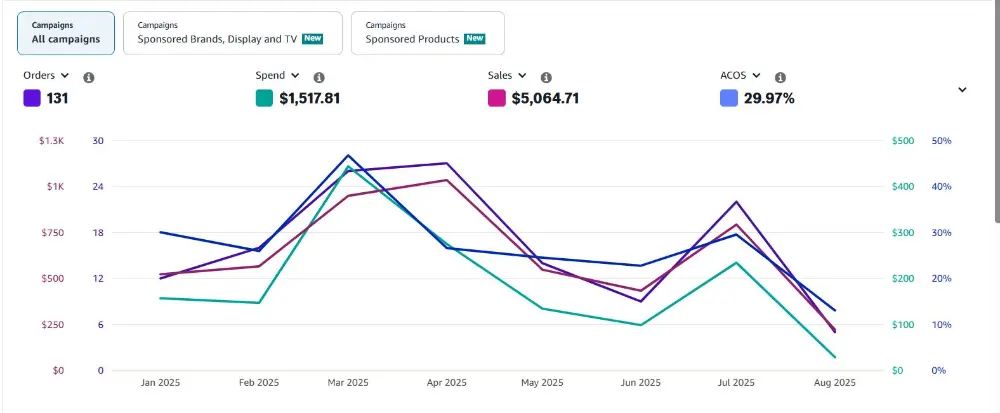
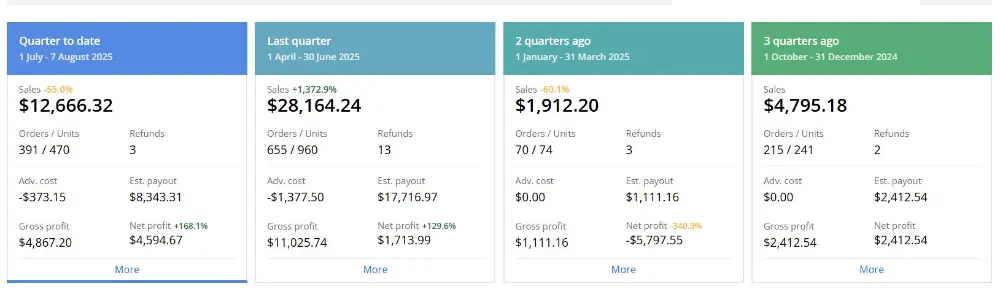
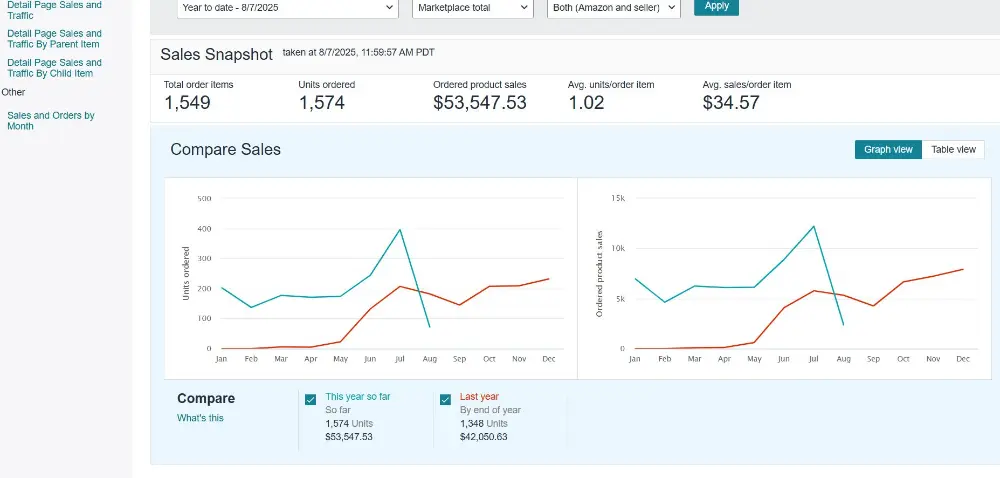
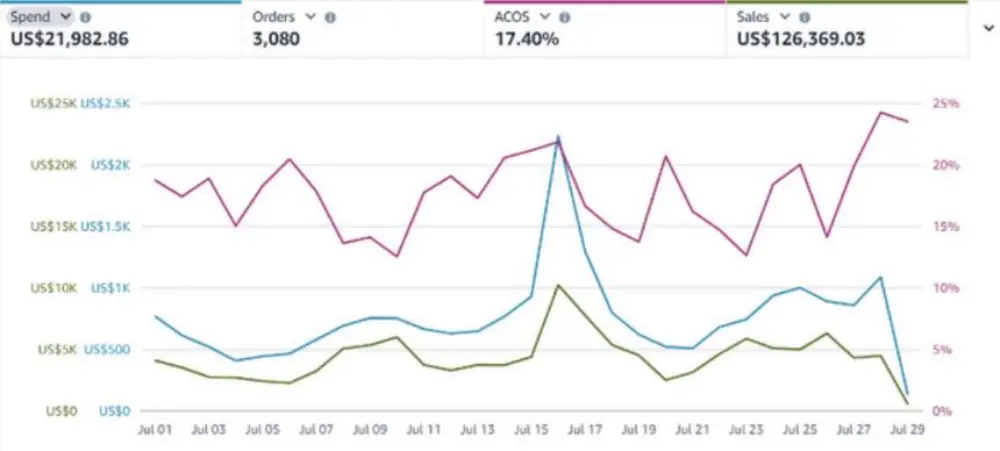
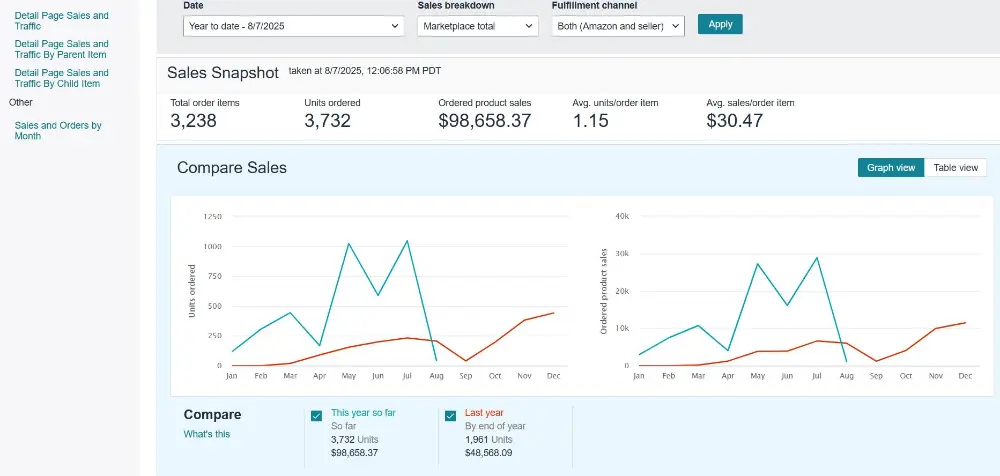
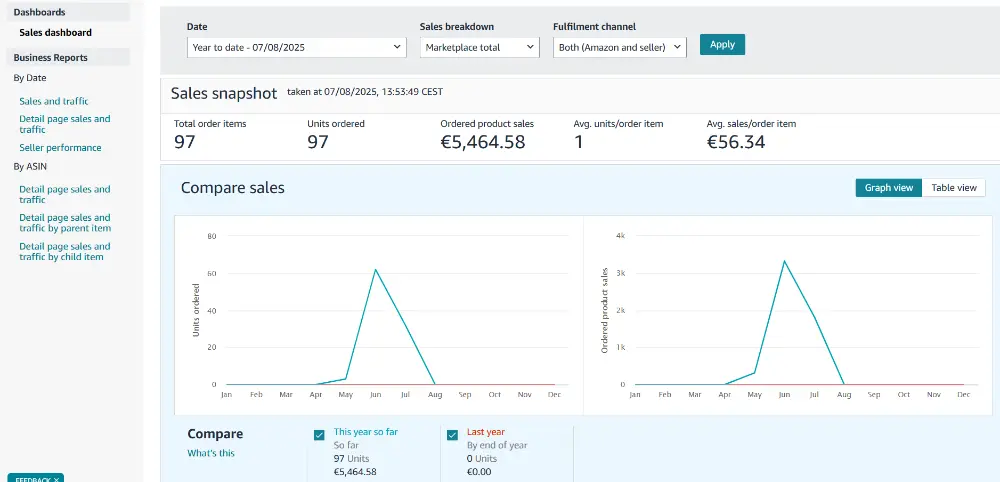
Real results from brands we work with
Screenshots from accounts we manage. Results vary by category, price and starting point.
Frequently asked questions
What are Amazon backend keywords?
They are hidden search terms you enter in the Search Terms (Generic Keywords) field of a listing. Shoppers do not see them, but Amazon can use them to match your product to searches.
What is the character limit for Amazon backend keywords?
In the US, sellers and agencies report a limit of 250 bytes. It is measured in bytes, not characters, so accented and non-Latin letters cost more. Staying near 245 bytes is a safe target.
Should I repeat my title keywords in the backend?
No. Amazon indexes a word once, so repeating words from your title, bullets or description wastes space.
Do I need commas between backend keywords?
No. Use single spaces only. Commas and other punctuation waste bytes and add nothing.
Can I use competitor brand names as backend keywords?
No. It goes against Amazon’s rules and can lead to a suppressed listing or a policy warning.
How long do backend keywords take to index?
Most sources say 24 to 72 hours, and up to a week for new listings or large catalogs. Test with your ASIN plus the term in a logged-out window.
Where do I find the Search Terms field in Seller Central?
Go to Inventory, open Manage All Inventory, click Edit on your listing and look in the Keywords section. The menu names can change, so follow the label that says Search Terms or Generic Keywords.
Do I need Brand Registry to use backend keywords?
No. Anyone can edit the field. You need Brand Registry only for Brand Analytics, which is one of the research tools.
Ready to See What Your Ad Account Could Actually Do?
Get a free, no-obligation audit of your Amazon PPC account, we’ll show you exactly where you’re leaving money on the table and what a real strategy would look like.
- Takes less than a minute to submit
- No obligation, no pressure, just a real look at your account
- We’ll tell you honestly if we’re a good fit

The Smart Sellers Edge
AI breakthroughs that help smart Amazon sellers outsell the competition.